
CGPA Calculator for Bangladesh University Students
Pick the scale your university publishes. Grade points differ between schools.
Your CGPA
Your grades are calculated in your browser and are never uploaded. CGPA = total grade points ÷ total credits. Rows need both a credit and a grade to be counted.
A CGPA calculator finds your overall grade point average by multiplying each course's grade point by its credit, adding everything up, and dividing by the total credits. With this free online CGPA calculator, you add semesters, enter credits and grades, and see each semester GPA and your final CGPA instantly.
Your result sheet shows one GPA per semester, but a scholarship form, job application or admission form asks for one CGPA. Working that out by hand across six or eight semesters is slow, and one wrong multiplication changes the answer.
This tool does the sums for you. You enter courses semester by semester, pick a grade for each, and the page shows your GPA for every semester plus your overall CGPA, total credits and total grade points. It is built for the 4.00 scale used by most universities, so it also answers the common search "cgpa koto" when you only have your grade letters.
Four steps from an empty semester to your final CGPA
- Choose a grading scale. Pick Standard or Plus/minus at the top. Use the scale your university publishes.
- Fill in your courses. Each semester starts with five rows. Type a course name if you like (it is optional), enter the credit, and pick the grade. Rename the semester if you want, for example "Fall 2024".
- Add more. Use "Add course" inside a semester or "Add semester" below. The × button removes a course or a whole semester.
- Read the result. Each semester shows its own GPA and credits. The result box shows your overall CGPA, total credits, total grade points and how many semesters were counted. Results update as you type, so there is no Calculate button to press.
Grade points built into the Standard and Plus/minus scales
The calculator has two 4.00 scales. Grade points differ between universities, so check your own grading policy before you trust any result.
| Letter | Standard | Plus/minus |
|---|---|---|
| A+ | 4.00 | not used |
| A | 3.75 | 4.00 |
| A− | 3.50 | 3.70 |
| B+ | 3.25 | 3.30 |
| B | 3.00 | 3.00 |
| B− | 2.75 | 2.70 |
| C+ | 2.50 | 2.30 |
| C | 2.25 | 2.00 |
| C− | not used | 1.70 |
| D+ | not used | 1.30 |
| D | 2.00 | 1.00 |
| F | 0.00 | 0.00 |
If your university publishes a different table, the numbers above will not match it. In that case, treat the result as an estimate and compare it with your official transcript. The University Grants Commission of Bangladesh website is a place to start for official higher education information.
Why your overall CGPA is not the average of your semester GPAs
This is the most common mistake. CGPA uses total grade points divided by total credits, not the average of GPAs. A semester with more credits counts for more.
| Credits | GPA | Grade points | |
|---|---|---|---|
| Semester 1 | 10 | 3.50 | 35.00 |
| Semester 2 | 15 | 3.00 | 45.00 |
| Overall | 25 | 80.00 |
Overall CGPA is 80.00 ÷ 25 = 3.20. A simple average of 3.50 and 3.00 gives 3.25, which is wrong.
The same logic works inside one semester. Say you take 3 credits with A (3.75), 3 credits with B+ (3.25) and 4 credits with A− (3.50) on the Standard scale. Grade points are 11.25 + 9.75 + 14.00 = 35.00, total credits are 10, so the semester GPA is 3.50.
What the tool counts and what it skips
A row is counted only when it has both a credit and a grade. The credit must be more than 0 and no more than 30. An F counts as 0.00 grade points but its credits stay in the total, so it pulls your CGPA down as it should. Rows with a credit but no grade, or a grade but no valid credit, are skipped, and a red warning tells you how many rows were left out. If no row is valid yet, the CGPA shows a dash instead of 0.00. Results are rounded to two decimal places.
Where this CGPA calculator helps: scholarship, job and admission forms
CGPA shows up in many real situations in Bangladesh:
- Job applications. Many circulars ask for your result in CGPA and the scale. Entry rules change from circular to circular, so read the government job eligibility guide and the official circular before you apply.
- Bank and BCS preparation. Once your CGPA is ready, switch to the bank job preparation MCQ practice or the BCS exam practice section.
- Starting from zero. If you are a final-year student who has not planned your job preparation yet, how to start government job preparation gives a simple order to follow.
- Scholarship and admission forms. Some forms ask for CGPA to two decimals. This tool gives you that, but use your official transcript for the final entry.
SSC and HSC use a 5.00 GPA scale, so this tool is not meant for them. It is for university-style CGPA on a 4.00 scale.
Where your grades go when you tap Copy result
Nothing you type is uploaded. Your grades are calculated in your browser and are never sent anywhere. The page uses no outside library, and once it has opened, the calculation runs on your own device.
Nothing is saved either. If you refresh or close the page, your entries are gone. To keep a result, tap Copy result. It copies plain text with each semester GPA and your overall CGPA, which you can paste into WhatsApp, Notes or a document. It uses your browser's clipboard feature, with a fallback for older browsers. If copying is blocked, you will see a message asking you to copy manually. If there is nothing to copy yet, the tool tells you to add a credit and a grade first.
12 semesters, 15 courses per semester: what happens at the limit
You can add up to 12 semesters and up to 15 courses in each semester. When you reach a limit, the tool shows a short message instead of adding more. Each semester must keep at least one course row, so the last row cannot be removed. If you want to start over, press Reset. It clears everything, returns to one semester with five rows and goes back to the Standard scale.
The layout works on screens from small phones to desktops, and it follows your device's dark mode setting.
Result shows a dash, a warning, or missing grades: fixes that work
- CGPA shows "—". No row has both a credit and a grade yet. Fill in one complete row.
- Red warning about rows not counted. Check that each credit is above 0 and not more than 30, and that a grade is selected. Course names alone do not count.
- Grades vanished after changing the scale. The Plus/minus scale has no A+, and the Standard scale has no C−, D+ or similar grades. Grades that do not exist on the new scale are cleared. Pick them again.
- Your CGPA does not match your transcript. Your university may use different grade points. Compare the table above with your grading policy.
- A retaken course. The tool has no retake or improvement option. If your university replaces the old grade, change or delete the old row yourself.
- Slow mobile data. Once the page has loaded, typing and calculating do not need the network, so a weak connection will not slow the sums.
Calculator, Excel, paper or a mobile app: which fits your CGPA check?
Paper works for one semester, but errors creep in when you add many courses. Excel gives full control, but you must build the formula (credit × grade point, then total ÷ credits) and keep your own grade table. Mobile apps can remember your data, but you need to install them. Cyber cafe services cost money for something you can do in a minute.
This calculator sits in the middle. It needs no sign-up and no install, and the grade points are already built in. The trade-off is that it does not save anything and does not handle retakes. Use it for a fast, clear answer, and keep your transcript as the official record.
CGPA calculator questions: scales, limits, saving and mobile
Is this CGPA calculator free, and do I need to sign up?
It is free to use and needs no login or sign-up. Open the page, add your courses and read your result. There is no premium version for this tool and no payment step. You can use it as many times as you like, for yourself or a friend.
Is it safe to enter my grades here?
Yes. Your grades are calculated in your browser and are never uploaded. The tool does not save anything either, so your entries disappear when you refresh or close the page. If you need the numbers later, use the Copy result button and paste them somewhere private.
Does it work on a mobile phone?
Yes. The layout adjusts from small phones to large screens. Fields are large enough to tap, and the page follows your phone's dark mode setting. Semester blocks sit side by side on wide screens and stack on narrow ones, so nothing needs sideways scrolling.
How many semesters and courses can I add?
You can add up to 12 semesters and up to 15 courses in each semester. Each course credit must be more than 0 and not more than 30. If you try to add more than the limit, a short message appears. Reset clears everything and gives you a fresh start.
Which scale should I pick: Standard or Plus/minus?
Pick the one that matches your university's published grading policy. Standard has A+ = 4.00 and A = 3.75. Plus/minus has A = 4.00 and A− = 3.70. If your university uses neither, the result will only be an estimate, so confirm it with your official transcript.
Why is one of my courses not counted?
A course is counted only if it has both a valid credit and a selected grade. The credit must be above 0 and up to 30. The page shows a warning with the number of skipped rows. Fill in the missing credit or grade, and the result updates at once.
Can I use this for SSC or HSC GPA?
No. SSC and HSC results use a 5.00 GPA scale. This tool is for university-style CGPA on a 4.00 scale, based on credits and letter grades. For SSC or HSC, use a calculator made for those exams.
Can I save or share my result?
The tool does not save your data, but you can press Copy result. It copies each semester GPA and your overall CGPA as plain text. Paste it into a message or a note. If your browser blocks copying, the tool shows a message, and you can copy the numbers manually.
Does it handle retake or improvement courses?
No. There is no retake option. Each row is counted as you enter it. If your university replaces an old grade after a retake, change or remove the old row yourself and enter the new grade. Follow your university's own policy for the final figure.
Can I use the result on a job or scholarship form?
Use it as a quick check. The tool shows your CGPA to two decimal places, but the official figure is on your transcript, and each circular has its own rules. Read the circular carefully before you submit any application.
Check your CGPA koto before you fill the next form
Open the CGPA calculator, choose your scale, add every semester and note your overall CGPA with total credits. Compare it with your transcript, then keep the copied result for forms. If you are applying for jobs next, browse the latest job circulars and read the viva and interview preparation tips before the written test.
Disclaimer: This tool is provided for general informational purposes. Please use it responsibly and double-check results before relying on them.
Recent Posts
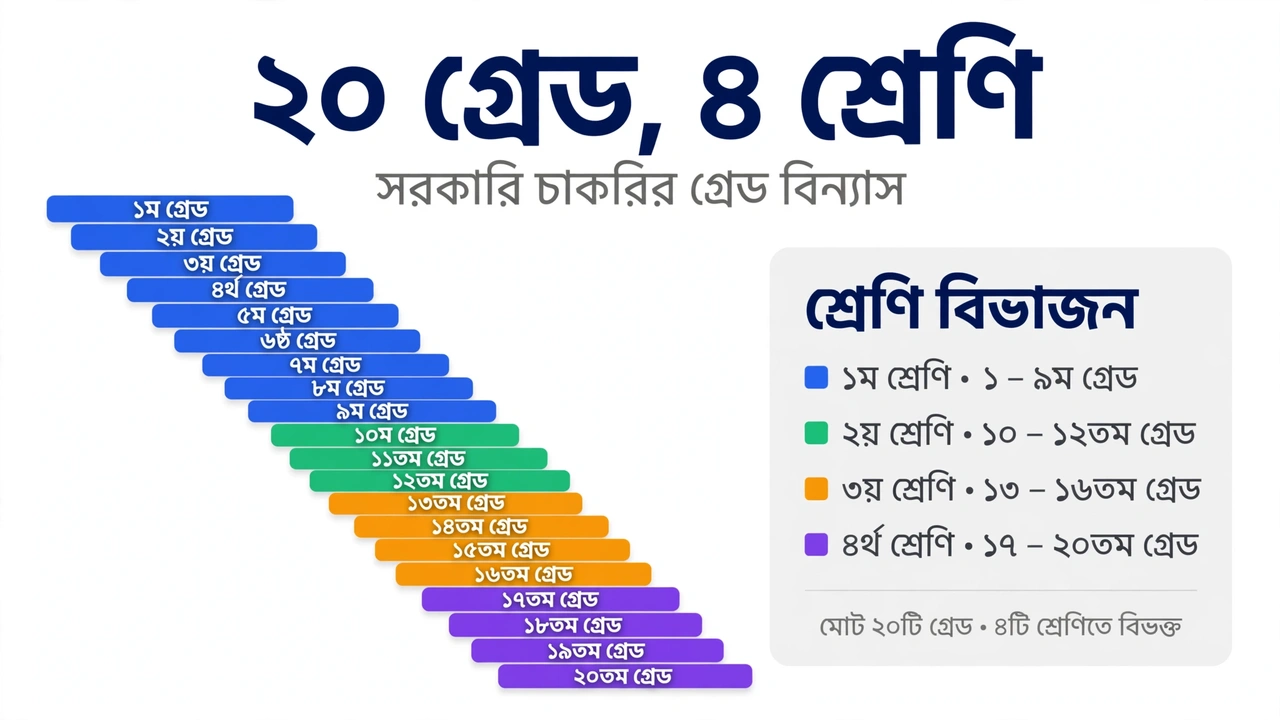 সরকারি চাকরির গ্রেড কয়টি? ১ম থেকে ২০তম গ্রেডের পরিচিতি ও নতুন বেতন (২০২৬)
 সরকারি চাকরি পেতে কী কী যোগ্যতা লাগে: বয়স, শিক্ষা ও শর্ত
 ৯ম গ্রেড সরকারি চাকরির MCQ প্রশ্ন ও উত্তর ব্যাখ্যাসহ: ২৫টি গুরুত্বপূর্ণ প্রশ্ন (বাংলা ও সাধারণ জ্ঞান) | ফ্রি PDF
 ৯ম গ্রেড সরকারি চাকরির MCQ ব্যাখ্যাসহ: ৩০টি গুরুত্বপূর্ণ প্রশ্ন ও ফ্রি PDF
 সরকারি চাকরির MCQ (১০ম গ্রেড): ২৭টি প্রশ্ন ব্যাখ্যাসহ | ফ্রি PDF
Explore Our E-Books
Career guides, preparation books & study materials ready to download as PDF.
Browse E-Books